FAQs for Agents & Clinicians
Account Setup
How will I receive my login details?
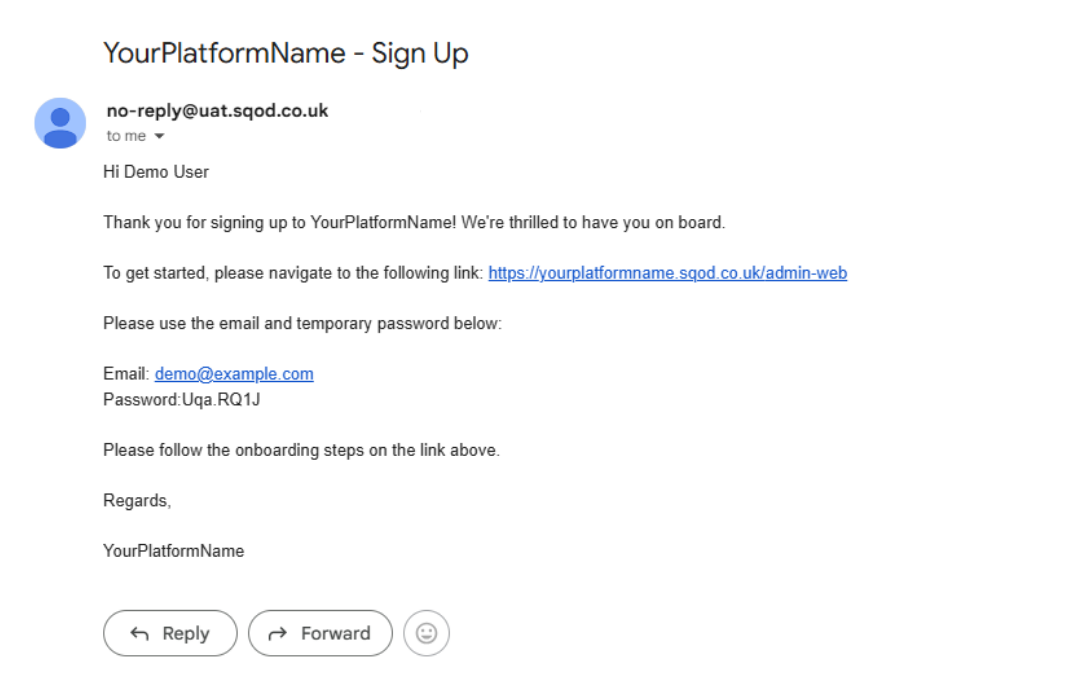
You will receive a welcome email from no-reply@app.sqod.co.uk.
What do I need to activate my account?
- welcome email
- access to your email account, mobile phone, and/or authenticator app
For information on setting up your MFA see Setting up Multi-Factor Authentication (MFA)
For organisations utilising Single Sign On, the login process will differ. Please refer to your System Administrator or Project Lead.
I haven't received my welcome email
Please check all junk/spam folders before contacting your manager or organisation's platform administrators as they can resend the invitation.
Password incorrect or in the wrong format error
Double-check that the temporary password has been copied accurately with no extra spaces or punctuation (these fields are case sensitive). If the issue continues, contact the Involve support helpdesk at customer.support@involve.vc or follow your agreed internal support process.
Password reset
On the sign-in screen, select 'Forgotten your password?', enter your email address, and follow the reset link sent to your inbox. To re-set your password once logged in, click onto your username from the banner at the top of the screen.
Can I stay logged in?
We strongly recommend that you log out when not actively using the platform to ensure that the site remains fully secure.
Can I share my login details?
No. Each user should have their own account for security, reporting, and compliance purposes.
Training
How long are training sessions?
Training can be arranged by your customer administrator or via your Involve Customer Success representative and usually last 30 - 40 minutes. We also offer virtual refresher training sessions for existing or returning users.
I am unable to join a training session
Most of our training sessions are recorded and can be shared with those unable to attend.
Our Support Centre also holds how to guides and useful articles that can be accessed at any time.
Can I practice conducting consultations?
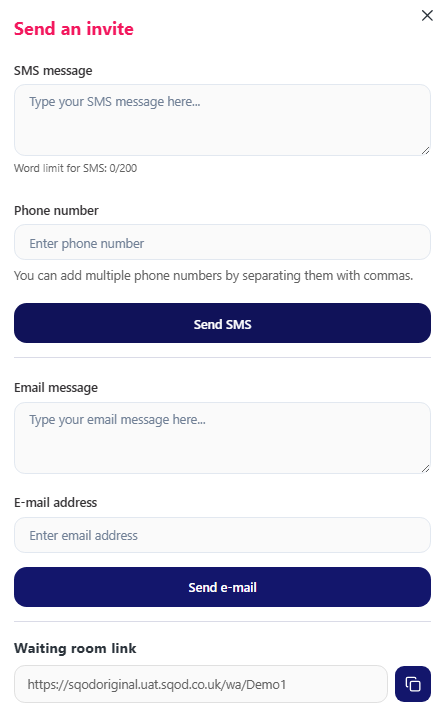
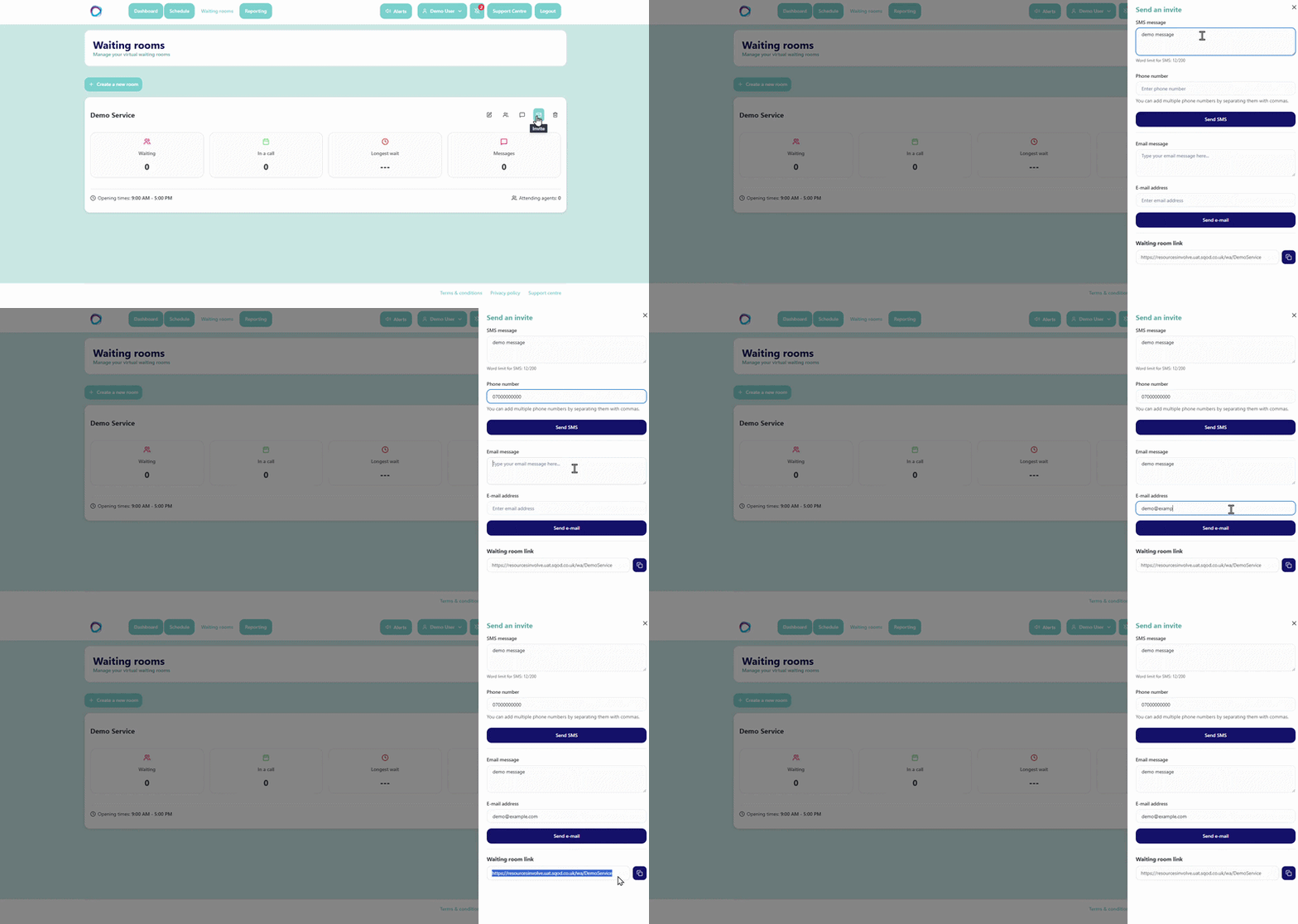
Absolutely, we highly recommend testing the system once you have received your welcome email. You can do this by sending yourself an invitation via SMS or email, alternatively, you can copy the invitation link directly into your web browser.
System Requirements
What equipment do I need?
- Computer, tablet, smartphone or laptop
- Webcam/camera
- Microphone
- Speakers or headset
- Stable internet connection
Can I access the platform on my mobile device?
Yes, the platform is fully compatible with mobile devices however for the best experience, we recommend using a laptop, tablet or desktop computer.
Which browsers are supported?
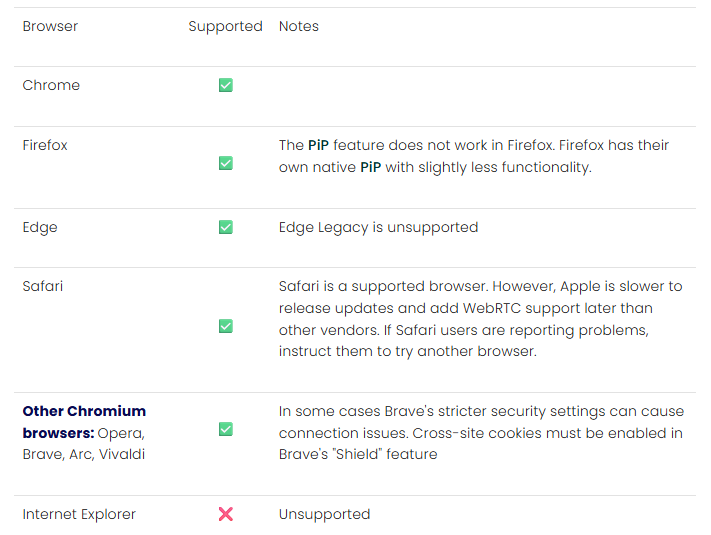
For additional system or browser information, please see System Requirements.
Video Consultations
Starting a video consultation
For a step-by-step guide on starting a video consultation please see How to Guide - Conducting Consultations
Group consultations
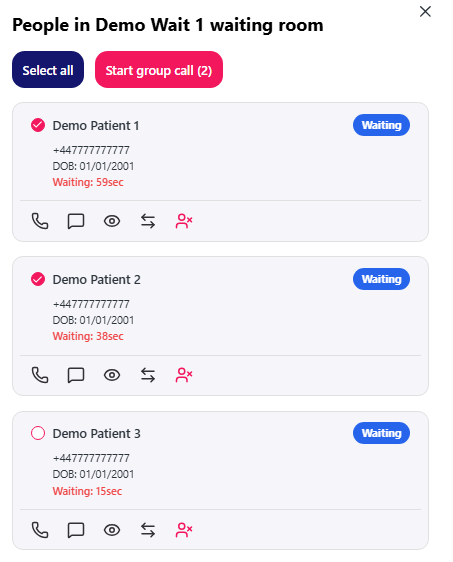
To begin a group consultation, select the tick boxes next the relevant caller/patients names and select 'start group call'. There is little difference between joining a 1:1 consultation versus a Group consultation and both can be handled from the same waiting room.
Inviting a caller / patient to the consultation
Waiting Room
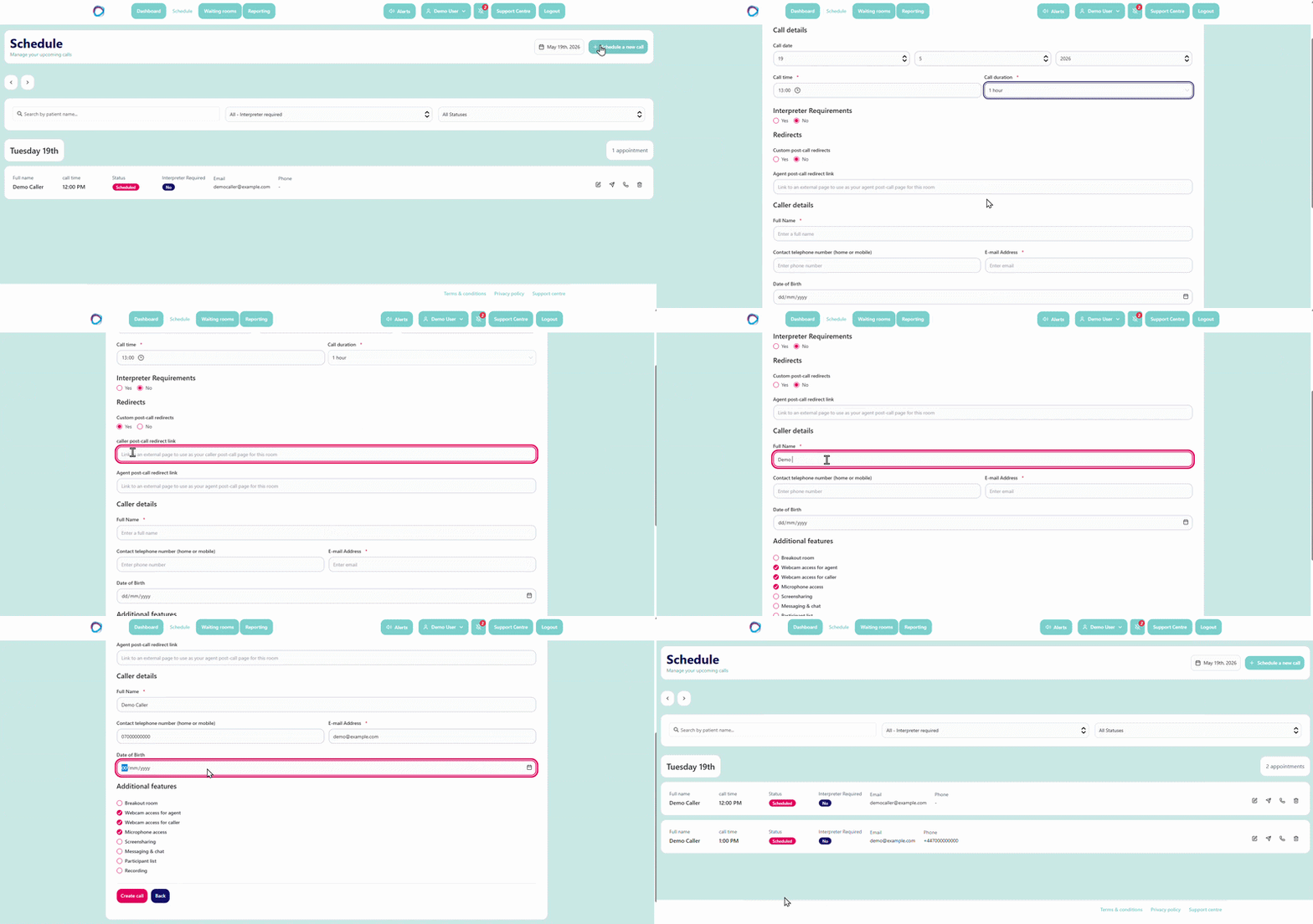
Scheduled Call
For details on the caller / patient journey, please see Joining Your Video Consultation
Placing a caller / patient on hold
Within the live consultation, select the Leave icon at the bottom-right of the screen and choose the 'leave room' option, this will place your caller/patient on hold.
To re-join the call, select the start call icon as you did to initially begin the consultation.
A caller / patient has joined the wrong waiting room
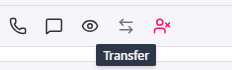
To transfer a caller/patient to the correct waiting room, select the transfer symbol within the people tab, then select the correct waiting room name and click the confirm transfer button. The caller / patient will see the new room name appear on their screen after a few seconds.
A caller / patient has joined more than once
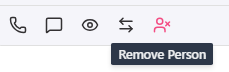
You can remove duplicate instances by selecting the remove button within the people tab. This will not prevent the caller / patient from accessing the room again in the future.
My caller / patient cannot join?
If they are experiencing issues with video or audio when trying to join their consultation, please refer to Audio or Video Device Challenges Whilst Joining Your Call.
Alternatively, we do have a live troubleshooting service available for callers/patients here
Troubleshooting
The connection test is taking a long time
It can vary depending on your connection speed. Tests shouldn't take longer than 60 seconds. If it takes longer than this, we recommend running an internet speed test at speedtest.net. Click GO to get your connection speed result.
The pre-call test has flagged a problem
Once the test completes, select 'Help me fix this' at the bottom of the page. You'll receive troubleshooting advice tailored to the issue:
Camera, microphone or speaker issues
You may have selected Block rather than Allow when access was requested. Click the camera or padlock icon in the browser address bar and update the permissions, then select 'Try Again'. If that doesn't help: disconnect and reconnect external devices, restart and review your browser-level settings, or check your operating system permissions.
Connection issues
Enable low data mode if available, move closer to your router or switch to an ethernet connection, restart your Wi-Fi router, close unnecessary apps and browser tabs, and disable any active VPN.

My connection dropped during the call

This is usually a temporary connection drop. The platform will attempt to navigate you back to where you were. If the issue persists, follow the Connection Issues steps above.
Who should I contact if I need help?
First try Live Troubleshooting for Agents / Clinicians if you need support with a platform concern.
If the troubleshooting guide is not able to provide a resolution, we would recommend following your internal process for reporting technical issues.
Alternatively you can also reach out to our help desk at customer.support@involve.vc.