How to Guide - Department Administrator
A Department Administrator has an intermediate level of permissions, limited to their assigned department within a Trust/Organisation's portal. This role can view, edit, and amend all department content via the platform.
In the agent/clinician portal (for the assigned department only), this role can:
• Add, edit, or remove waiting rooms
• Create and join scheduled and waiting room appointments
• View and export reports
• Access the support centre
In the admin portal (for the assigned department only), this role can:
• Search for, add, edit, or remove departments
• Search for, add, edit, remove, or assign users to a department or waiting room
• View and filter audit logs
How do I access the Admin Portal?
After logging in, scroll to the top of the screen and select the tile with your name and select 'Switch to Admin' from the dropdown.
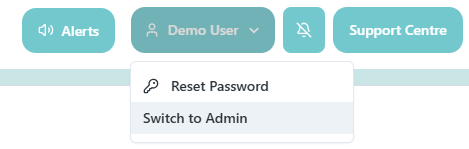
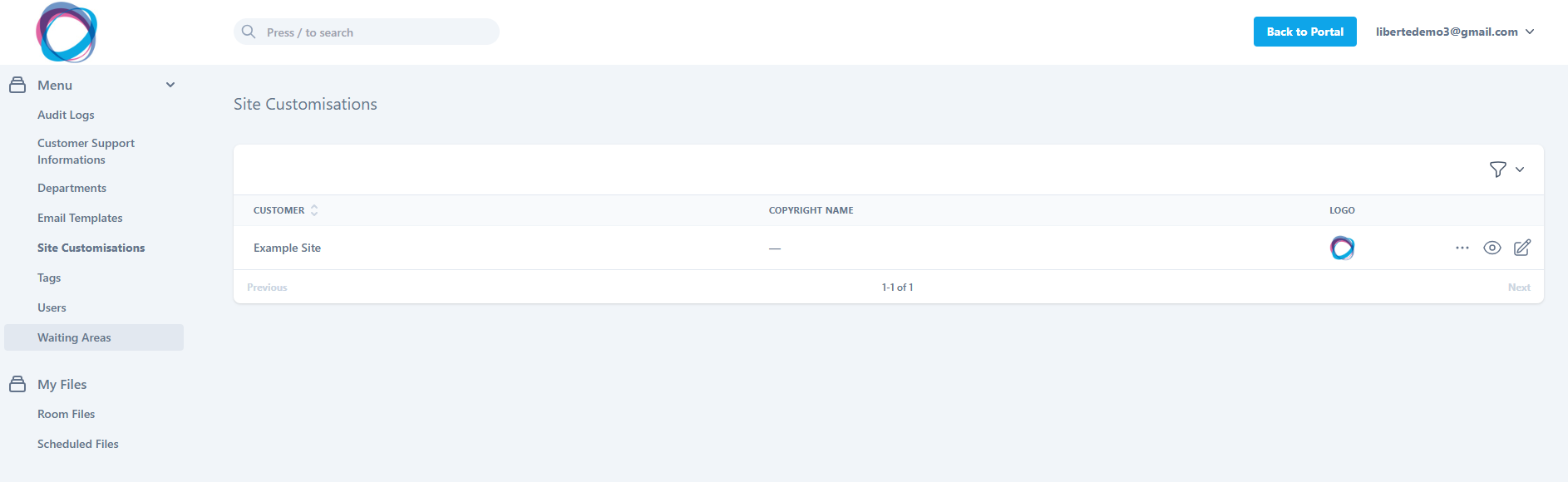
Top Tip: Switch back to the agent portal at any time by selecting 'Back to Portal' in the top-right corner.

How do I view an Audit Log?
Select 'Audit Log' from the left-hand panel and use the look-up tool to search by key reference, or filter by action, resource, customer, department, user, or date/time.

Select the view (eye) icon to the right of any log entry to see full details and the unique audit log reference code generated by the platform for log tracking.
What is the purpose of Departments?
Departments allow reporting at business area level. For example, 'Occupational Health North' may include a Lung Function Test room, Mental Health room, and New Starter Assessment room, with reports available per department. A Department Administrator can be assigned to take responsibility for specific departments.
Top Tip: Departments aren't required if you're only using a small number of waiting rooms.
How do I view and change my Departments?
Select 'Departments' from the left-hand panel in the admin portal to view your current departments.

From here you can:
• Create a department by selecting 'Create Department', giving it a name, and confirming
• Filter, view, edit, or delete existing departments using the icons displayed

How do I add a new User?
Select 'Users' from the left-hand panel and click 'Create User'.

Fill in all mandatory fields (marked with an asterisk): first name, last name, email address, and role. The department field is optional, selecting the box will open a list of your current departments. Select 'Create User' to save, or 'Create & Add Another' if adding multiple users.
An auto-generated welcome email is sent from a no-reply address and may arrive in junk/spam. It contains a link to your organisation's portal, the user's email address, and a system-generated password to allow login, followed by an MFA setup process.
Once created, you must assign the user to their waiting room in the agent portal.
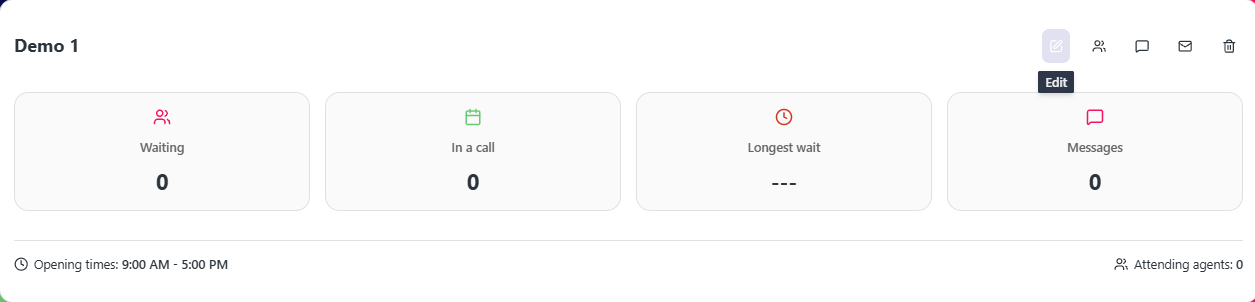
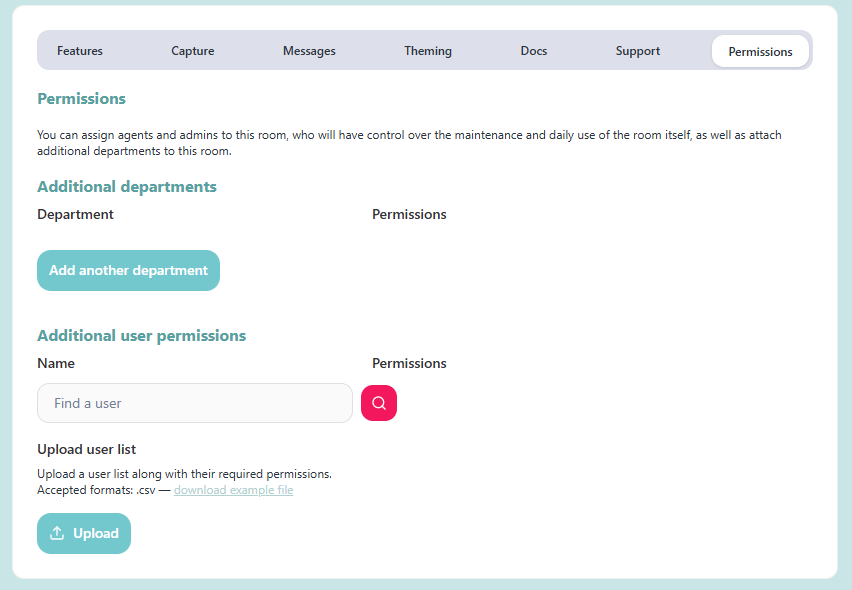
Navigate back to the portal, select the waiting room, click the Edit (pencil) icon, scroll to the Permissions tab, and select the user from the dropdown. Click Save at the bottom of the screen.
How do I search for, amend or delete current Users?
Select 'Users' from the left-hand panel in the admin portal to view all current users and their roles.

To amend a user, find them in the list and select the ellipsis (…) to the right. Options include: User Actions, Resend Email Verification (useful if a user can't locate their invite), or Fully Delete User
(removes the user and all permissions from the platform entirely).


The view (eye) icon allows you to view and edit user details and manage department assignments. The edit (pencil) icon lets you update first name, last name, email, and role. Select 'Update User' to save.
Reporting and Analytics
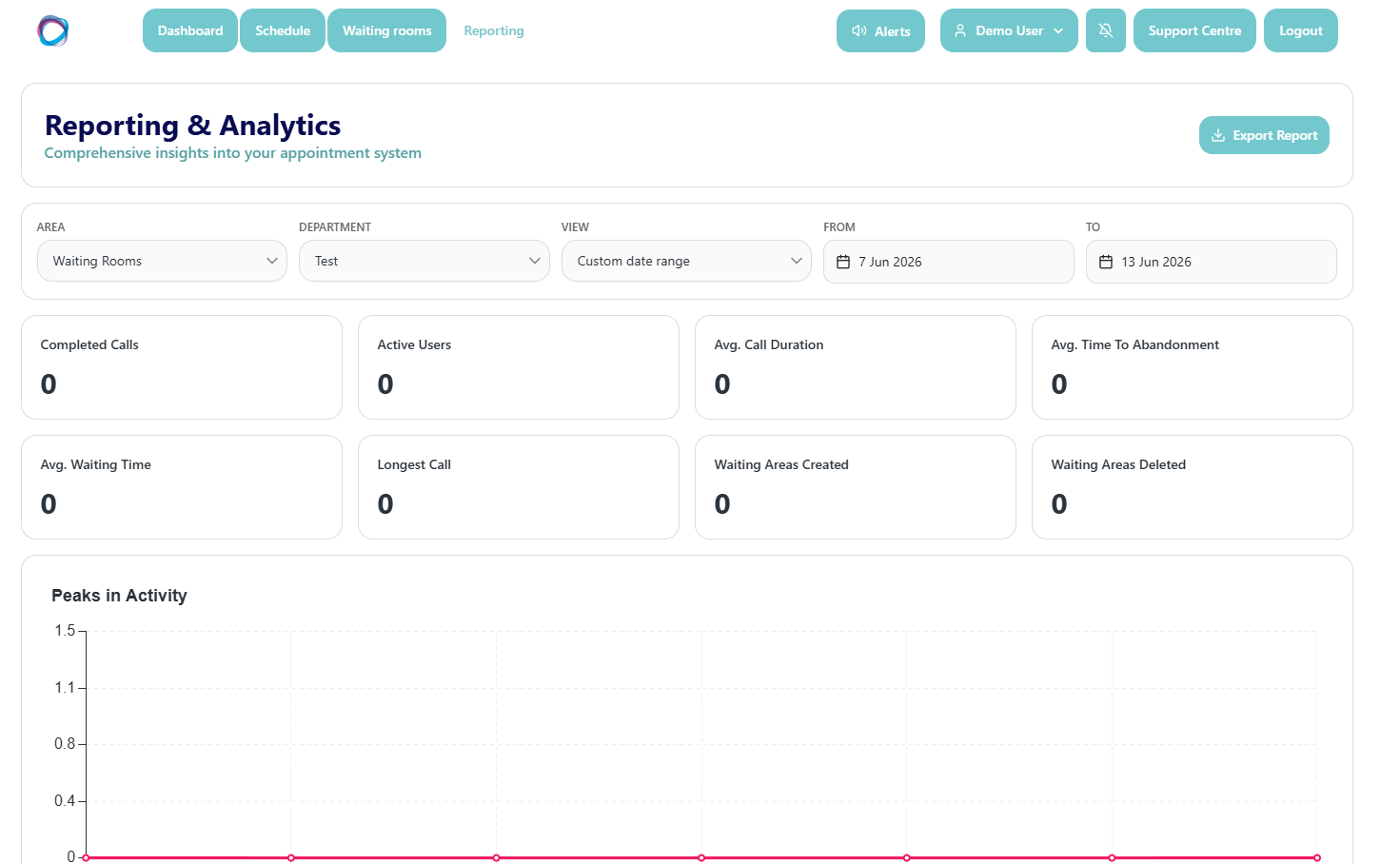
Head to the Reporting tab in the agent portal to view consultation activity within your department.
Filter by date range and waiting room service, using pre-set options (e.g. one week, one month) or a custom date range. Data is shown in tiles and charts and can be exported as a .CSV file.
Support Centre
Accessible from the top navigation bar. Department administrators have access to troubleshooting tips, how-to guides, FAQs, and technical information.

Further Training
Comprehensive virtual training is available on department administration features. Please reach out to your platform representative to enquire.