How to Guide - Upload Document Links
The platform offers multiple features for assisting your callers/patients after a call ends. An agent/clinician or department administrator may add a link to documents to download or a web page to visit post call.
To upload a document link, from the Waiting Rooms tab, find the room you wish to update and click the pencil (edit) icon, then select the Docs tab from the box on the right.
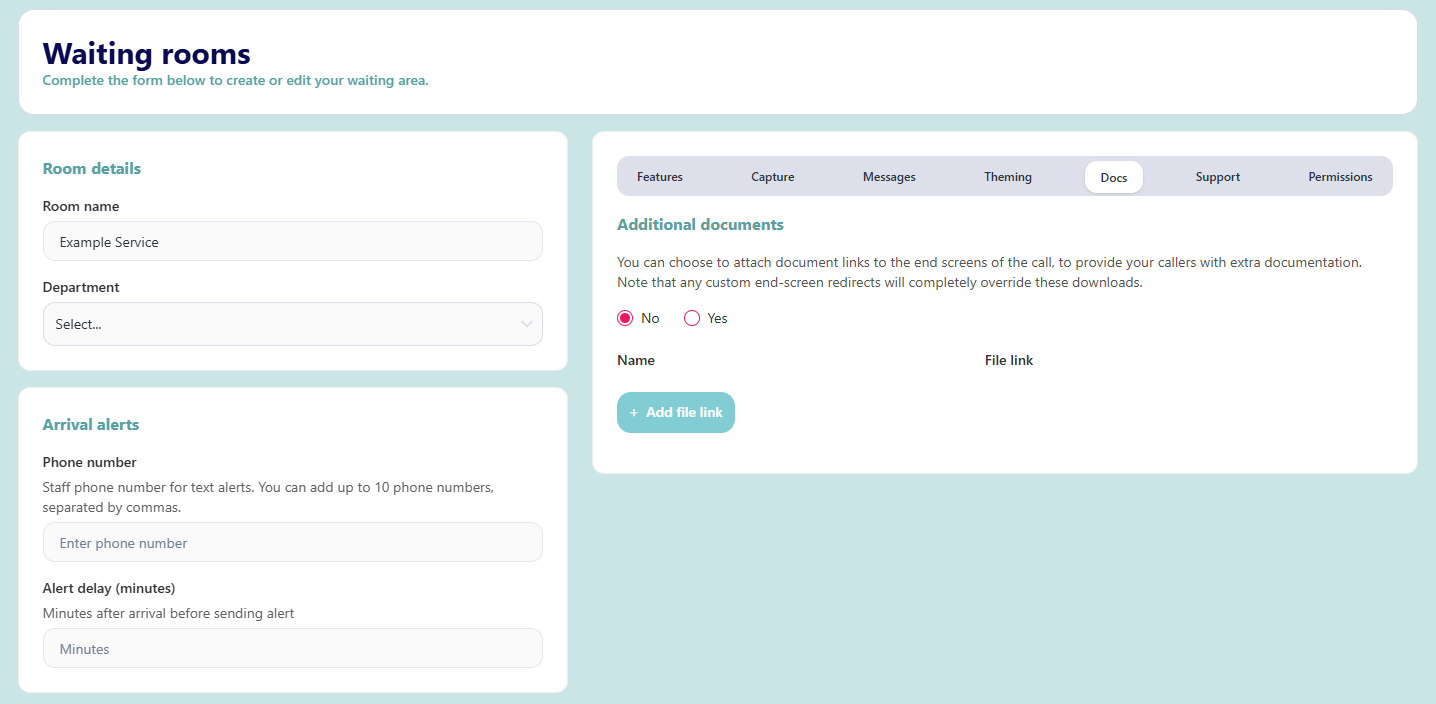
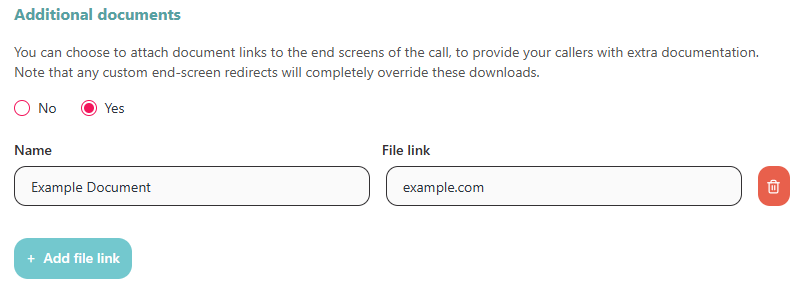
When prompted, select Yes to enable document links, then click 'Add a New File Link'.
Enter a simple display name (e.g. "Feedback Form") and the URL of the document or webpage and click save at the bottom of the page.
Once the call is completed, these links will appear to the caller/patient under 'Supporting Documents'.
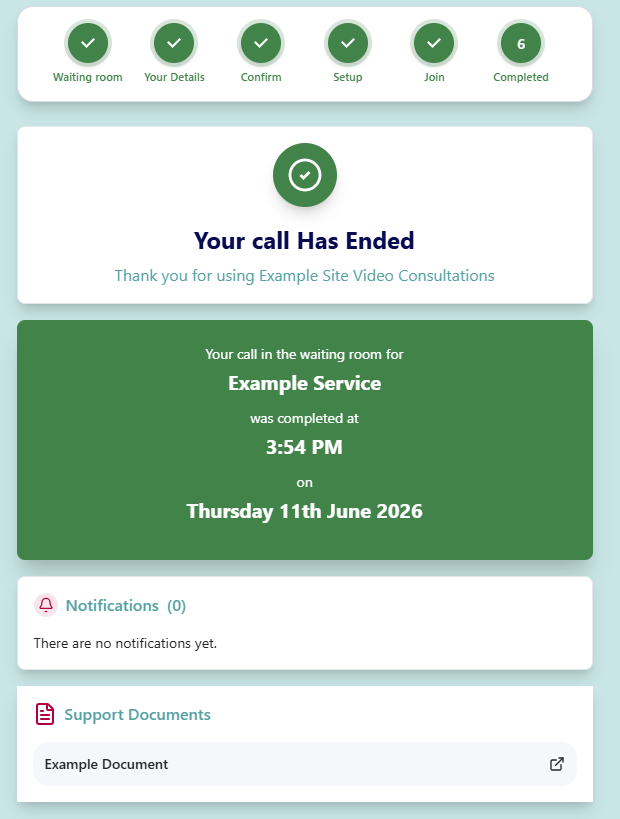
Note: if a custom post-call redirect has been set up, document links will not be displayed as the caller/patient is automatically redirected once the call ends.