Platform Overview
Dashboard Tab
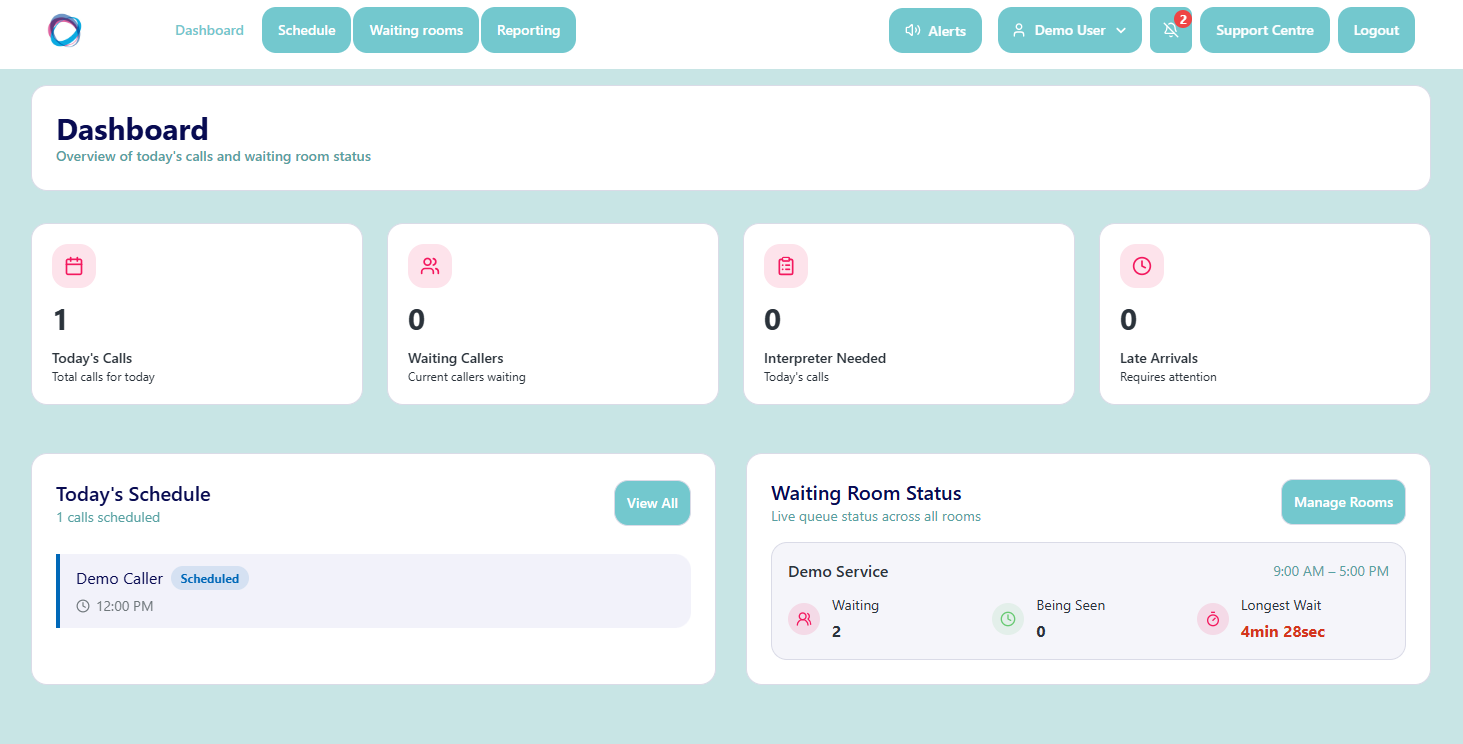
The Dashboard is the first screen presented after login. Content within the tiles varies by role, features used, and activity. You can see the services you're assigned to, (waiting rooms and/or scheduled calls), and navigate directly to them by clicking into the tiles or selecting the buttons within the white ribbon at the top of the screen.
If a caller/patient is waiting in a room, this is clearly indicated in the waiting room tile, including how long they've been waiting.
Scheduled calls are also clearly indicated within the todays schedule tile. To view future bookings, head to the Schedule tab and select the relevant date from the calendar.
Schedule Tab
All roles on the platform allow an agent/clinician to schedule appointments.
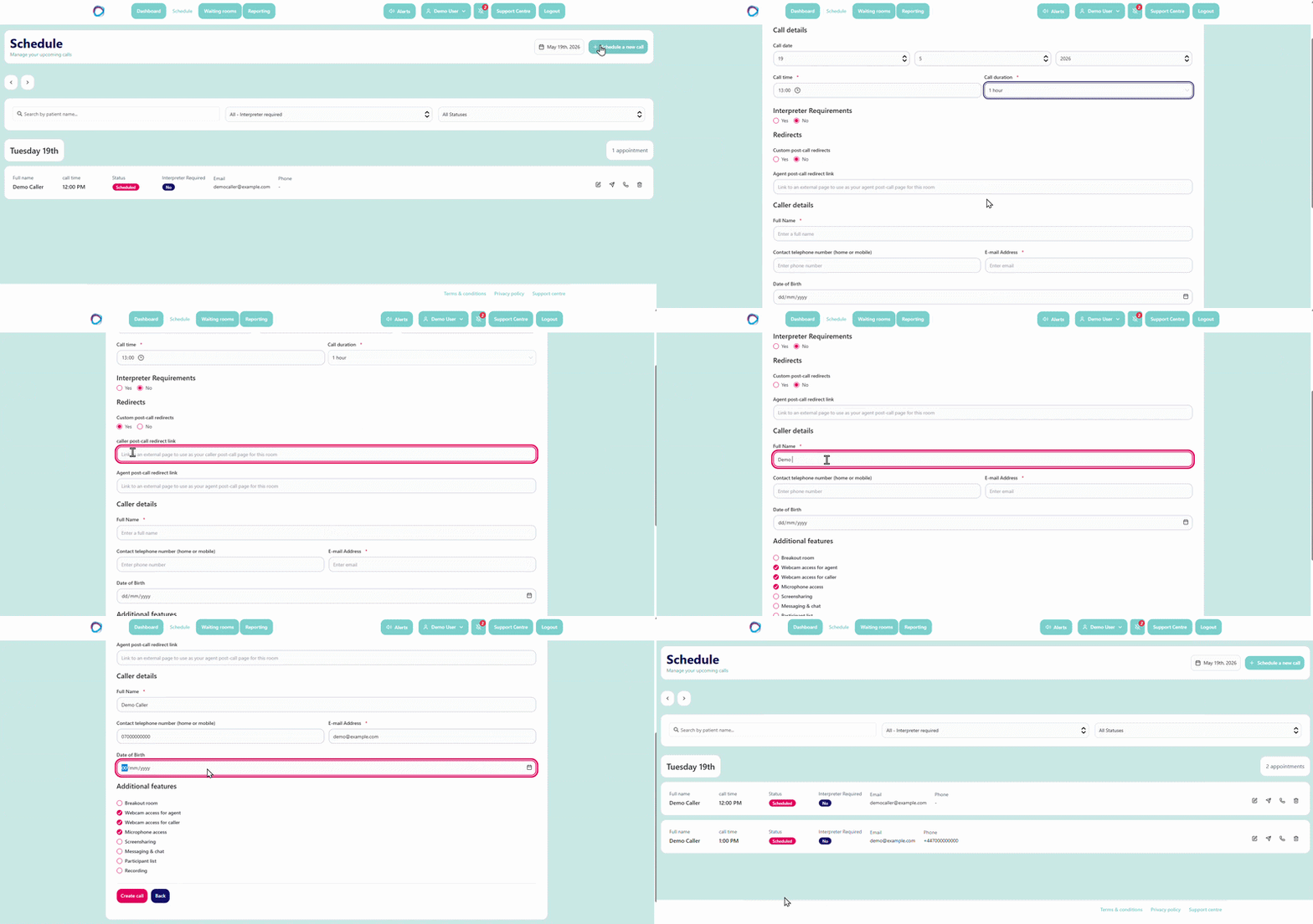
In the schedule tab you can view existing calls or create a new one.
To schedule a new call, select the pink 'Schedule a New Call' button in the top right and complete the following details:
• The department the call should sit within
• Call date, time, and duration
• Whether an interpreter is required, and if so, the language
• Whether a post call re-direct is required for callers/patients or agents/clinicians
Followed by caller/patient details:
• Full name
• Phone number
• Email address
• Date of birth
Select any additional features you would like to be enabled then click 'Create Call'. The appointment is added to your schedule and an invitation with the meeting link is sent to the caller/patient by email and/or SMS.
Note: caller/patient entry fields can be customised by an organisation depending on their requirements.
Waiting Rooms Tab
To create a waiting room, an administrative role is required.
Agents or clinicians can view assigned rooms from the dashboard. Department administrators can view all rooms in a department and customer administrators can view rooms across the organisation.
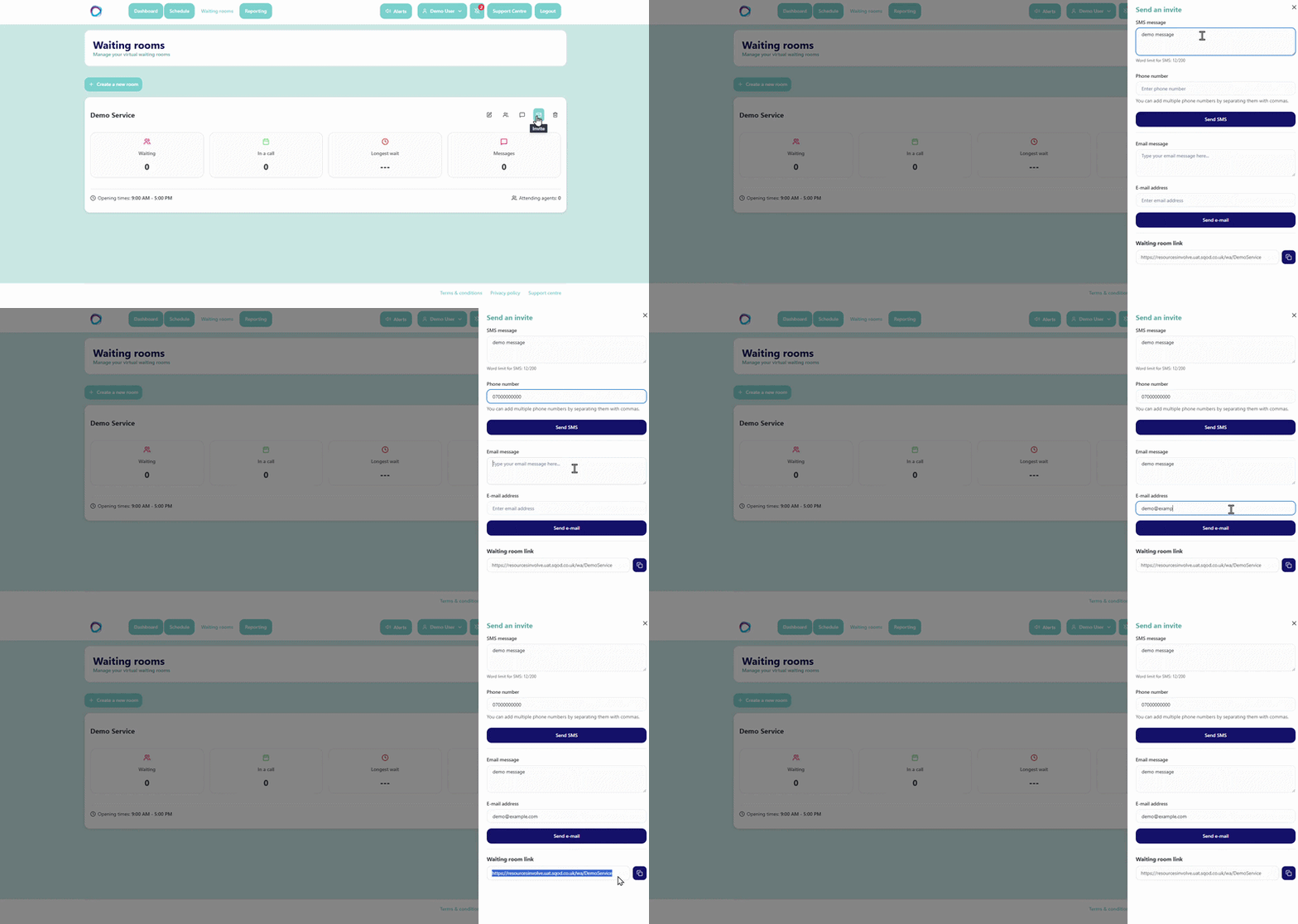
To manage callers or patients, hover over a room and select the relevant icon to:
- view people waiting
- send a message
- invite a caller or patient
Administrators can also edit or delete rooms from this screen.
Reporting Tab
The reporting tab is used to view and analyse consultation activity across scheduled calls and waiting rooms.
You can:
- choose a date range
- filter consultation types
- view by department or organisation
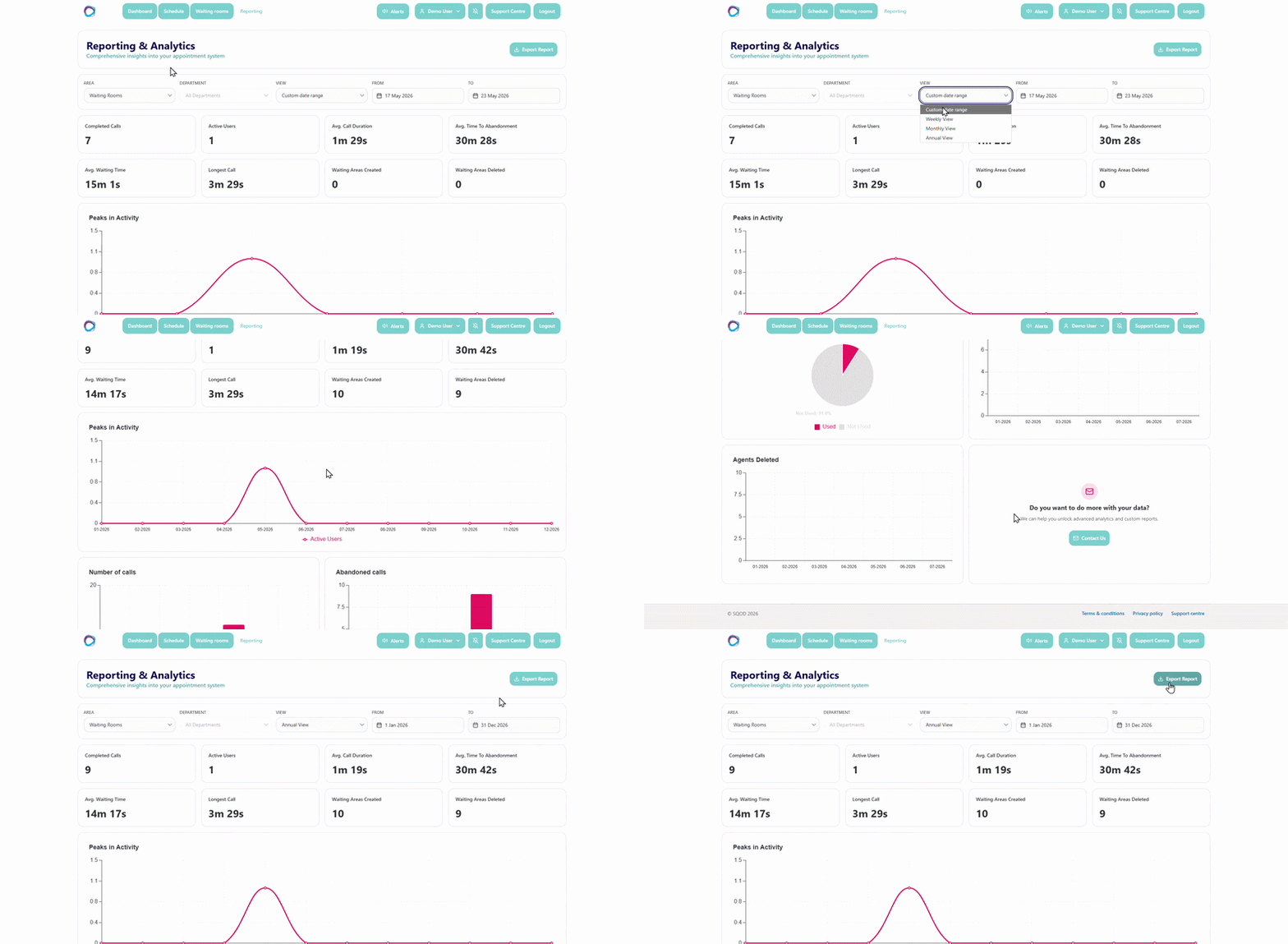
Raw data from these reports can be exported as a .CSV file for further manipulation.